
How to add domain targeting to a campaign?
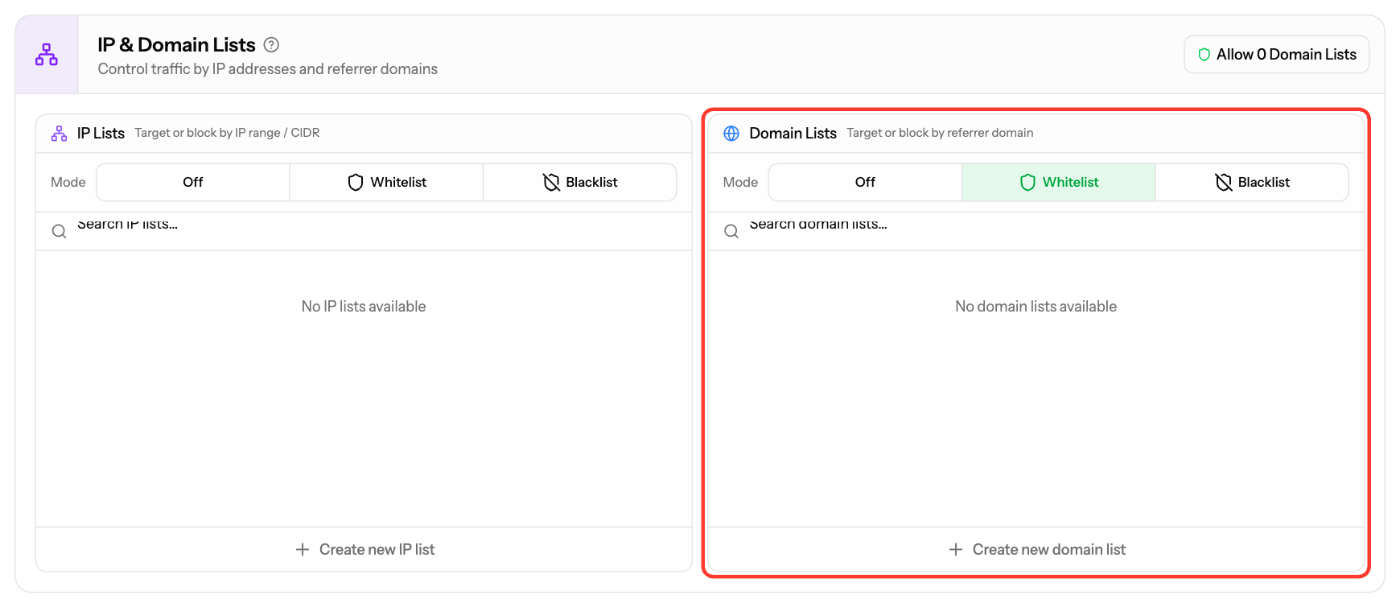
Use Domain Lists in the Targeting step to show ads only on certain referrer domains (Whitelist) or to block them (Blacklist). IP Lists work the same way for IP addresses and CIDR ranges.
Add a domain list
- Go to Campaigns and click Edit Campaign on the campaign.
- Open the Targeting step and scroll to IP & Domain Lists.
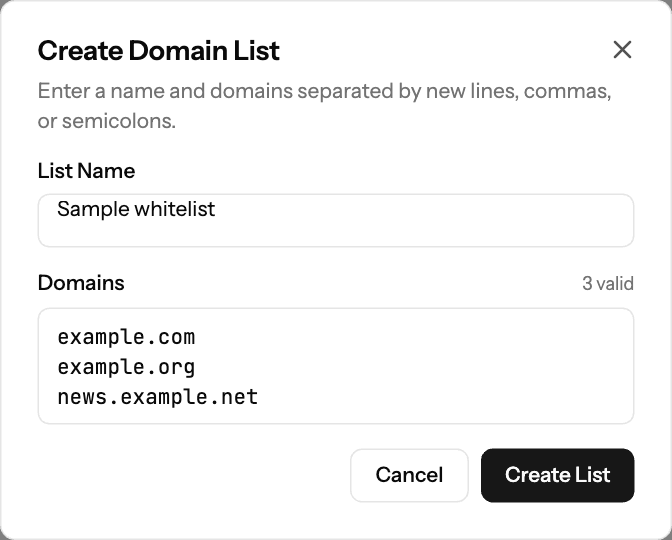
- Under Domain Lists, click Create new domain list.
- Enter a List Name and the Domains, separated by new lines, commas or semicolons (for example
example1.com,example2.com). - Click Create List. Invalid entries are ignored.
- Set Mode to Whitelist or Blacklist and select the list.
- Click Apply Lists to save.
Add an IP list
- In IP & Domain Lists, under IP Lists, click Create new IP list.
- Enter a List Name and the IP Addresses or CIDR ranges, separated by new lines, commas or semicolons.
- Click Create List, set Mode and click Apply Lists.
Good to know
- Off means the list type is not used.
- A list can be used by several campaigns. Editing it changes it everywhere it is used.
- You can't delete a list while a campaign uses it.
- For curated domain lists by category, contact your account manager or support@ezmob.com.
Screenshots
Related articles
- How to blacklist/whitelist SubIDs?
- Optimization Guide for Advertisers
- Campaign Creation: The Complete Guide
Updated on: 27/09/2026
Thank you!