
Video Campaign Creation Guide
Video campaigns play your video ad in publisher content (VAST/VPAID). They are billed per 1,000 impressions (CPM), with a minimum bid from $0.30 to $1.00 depending on the country tier.
Format at a glance
Pricing model | CPM (you pay per 1,000 impressions) |
Minimum bid | Tier 1: $1.00 · Tier 2: $0.50 · Tier 3: $0.30 |
Creatives | 1–5 per campaign |
Required per creative | Video, Destination URL |
If you target countries from more than one tier, the minimum of the highest tier applies. For example, any Tier 1 country means the Tier 1 minimum.
Steps
- In the sidebar, click Campaigns, then Create Campaign.
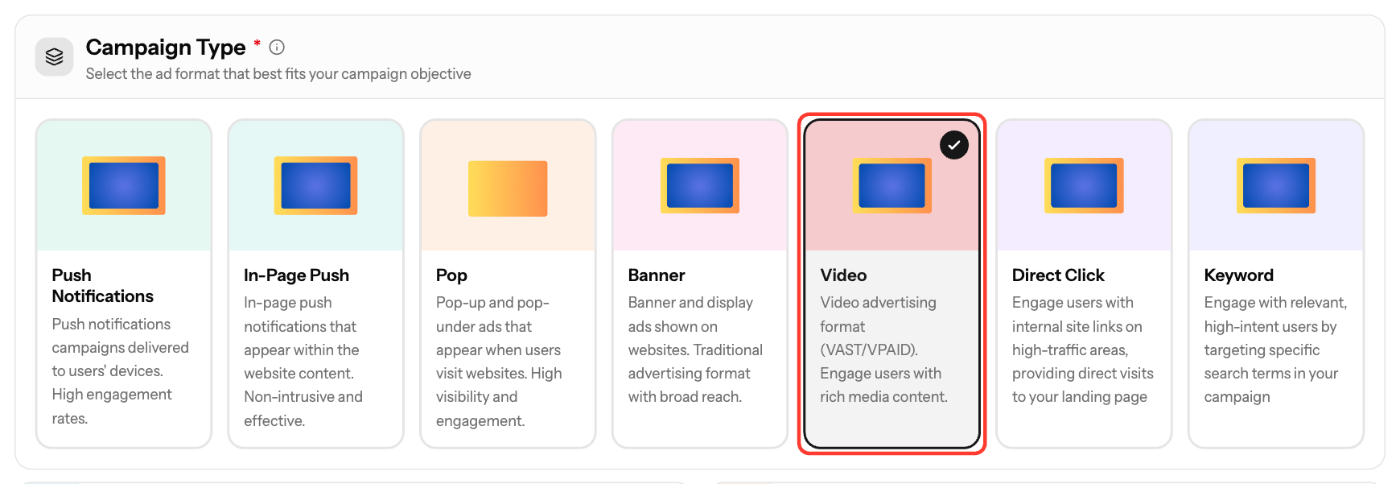
- In Basic Info, select Video under Campaign Type. You can't change the type after the campaign is created.
- Enter a Campaign Name (3–200 characters) and select an Ad Vertical. Description, Schedule and Campaign Goals are optional.
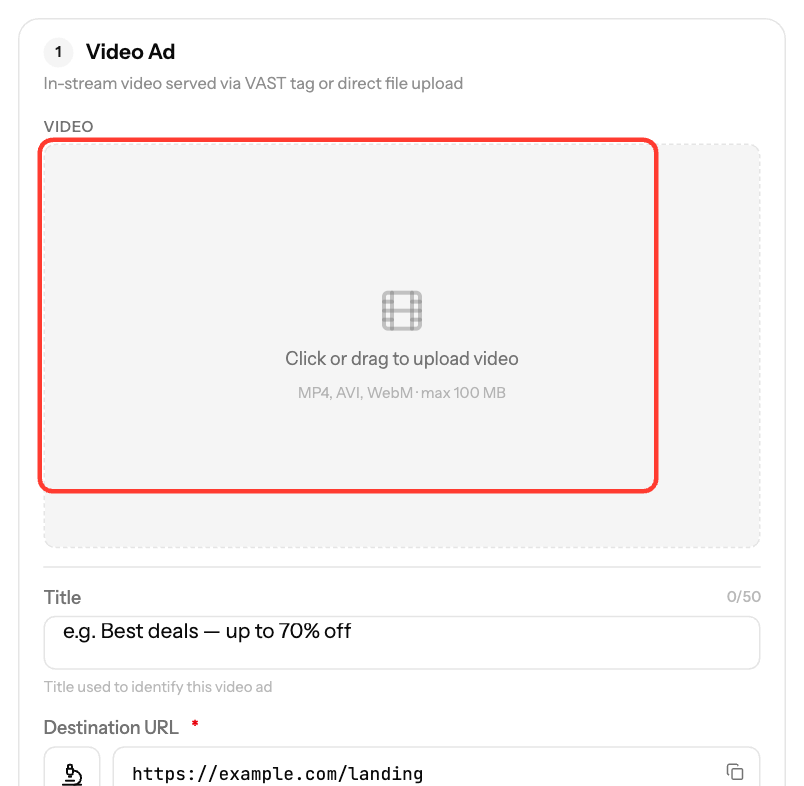
- Under Creatives, upload a video file and enter the Destination URL (see below). Click Add creative to add more, up to 5.
- Click Next. In Targeting, choose countries, devices, schedule and lists, or leave them empty to run broadly.
- Click Next. In Budget & Launch, set your Bid and limits (see below).
- Check the review summary and click Create Campaign.
Creative requirements
Field | Required | Spec |
|---|---|---|
Video | Yes | See the video specs below |
Destination URL | Yes | Must start with http:// or https://; tracking macros allowed |
Title | No | Up to 50 characters. If left empty, one is generated from your ad's domain |
Video specs
- Formats: MP4, AVI, WEBM, MOV, MPEG
- Max file size: 128 MB
- Length: 3–60 seconds
- Max bitrate: 4,000 kbps
In Targeting, Video campaigns also have Traffic Type (websites, apps or both).
Budget & Launch settings
Field | Rule |
|---|---|
Bid | At or above the tier minimum. The wizard suggests Min, Avg and Rec bids |
Total Budget | Optional. At least $50, or No limit |
Daily Cap | Optional. At least $10; resets at midnight UTC |
Budget Type | ASAP or Evenly |
Frequency Cap | Optional. 1–100 impressions per unique IP in 24 hours |
New creatives are reviewed before they serve traffic.
Screenshots
Related articles
- Campaign Creation: The Complete Guide
- How to create a Banner (Display) campaign?
- How high or low should I bid?
- How long does it take for campaign approval?
- Advertiser Reports Guide
Updated on: 27/09/2026
Thank you!