
Troubleshooting Ads Not Showing on Your Site
If your tag is on your site but no ads appear, work through this checklist. Most cases are a paused or still-syncing placement, a changed or misplaced tag, or no matching demand for that visit.
1. Check the placement
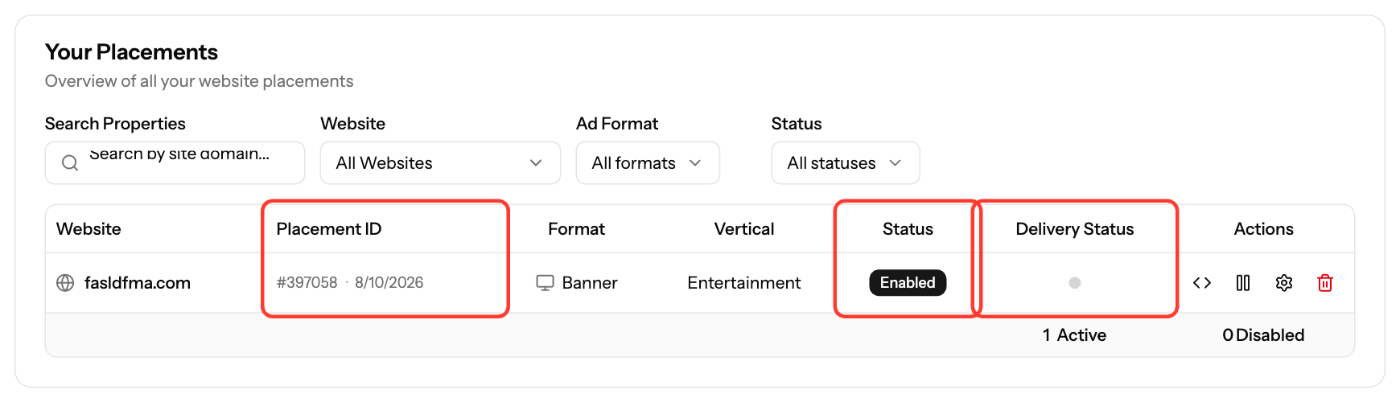
- Open Sites & Placements → Your Placements.
- Check that the Status is Active. If the placement is paused, click Resume Placement in Actions.
- Check the Placement ID column. If it still shows Creating..., setup isn't finished. It usually completes within 3 minutes; refresh the page.
- On the Your sites tab, check that your site is Validated. Unvalidated sites don't receive premium demand.
2. Check the tag
- Click the code icon (View Script), copy the tag again with Copy Script and compare it with the code on your page. Don't edit the tag.
- Banner and Video tags must be inside the
<body>section, where the ad should show. A Banner or Video tag pasted in the<head>may not display: move it into the page body. - Place it as described in the note under the tag in the code view, on every page where ads should show.
- Make sure your theme, CMS or a security plugin doesn't strip or block the script.
- Test in a private window with ad blockers off, and from more than one network. Some networks block ads.
3. Check delivery and Reports
- Delivery Status in the Placements table: green means activity in the last 24 hours, gray means none.
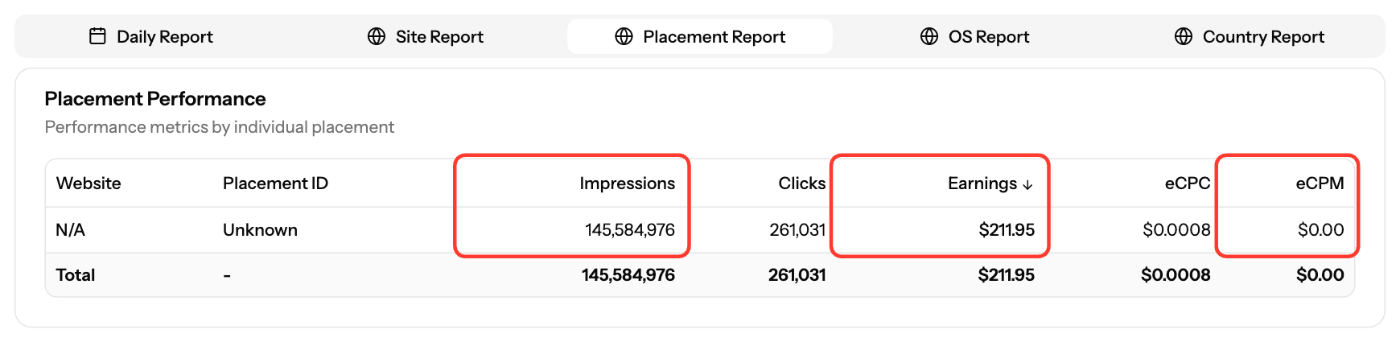
- In Reports, open the Placement Report for your placement:
What you see | What it means |
|---|---|
Impressions = 0 and Delivery Status gray | The tag isn't firing: not installed, wrong page, blocked, or placement paused |
Delivery Status green but few Impressions | The tag works, but there was little matching demand for those visits |
- Demand depends on the visitor's country, device and connection, and on your site's content vertical and content type. Make sure these are set correctly for your site.
- Reports use Pacific time, and publisher data re-syncs hourly for the last 2 days, so recent numbers can still change.
Contact support
If the placement is active, the tag matches and Reports still show no impressions after a few hours, email support@ezmob.com with the page URL, the Placement ID and a screenshot.
Screenshots
Related articles
- Why is my revenue low or zero?
- How to Create a Placement and Obtain Your Ad Tag
- How to check your ad code (with examples)
- Understanding Publisher Revenue Reports
- When are publisher reports updated?
Updated on: 11/10/2026
Thank you!