
Can I set a passback tag on my placement?
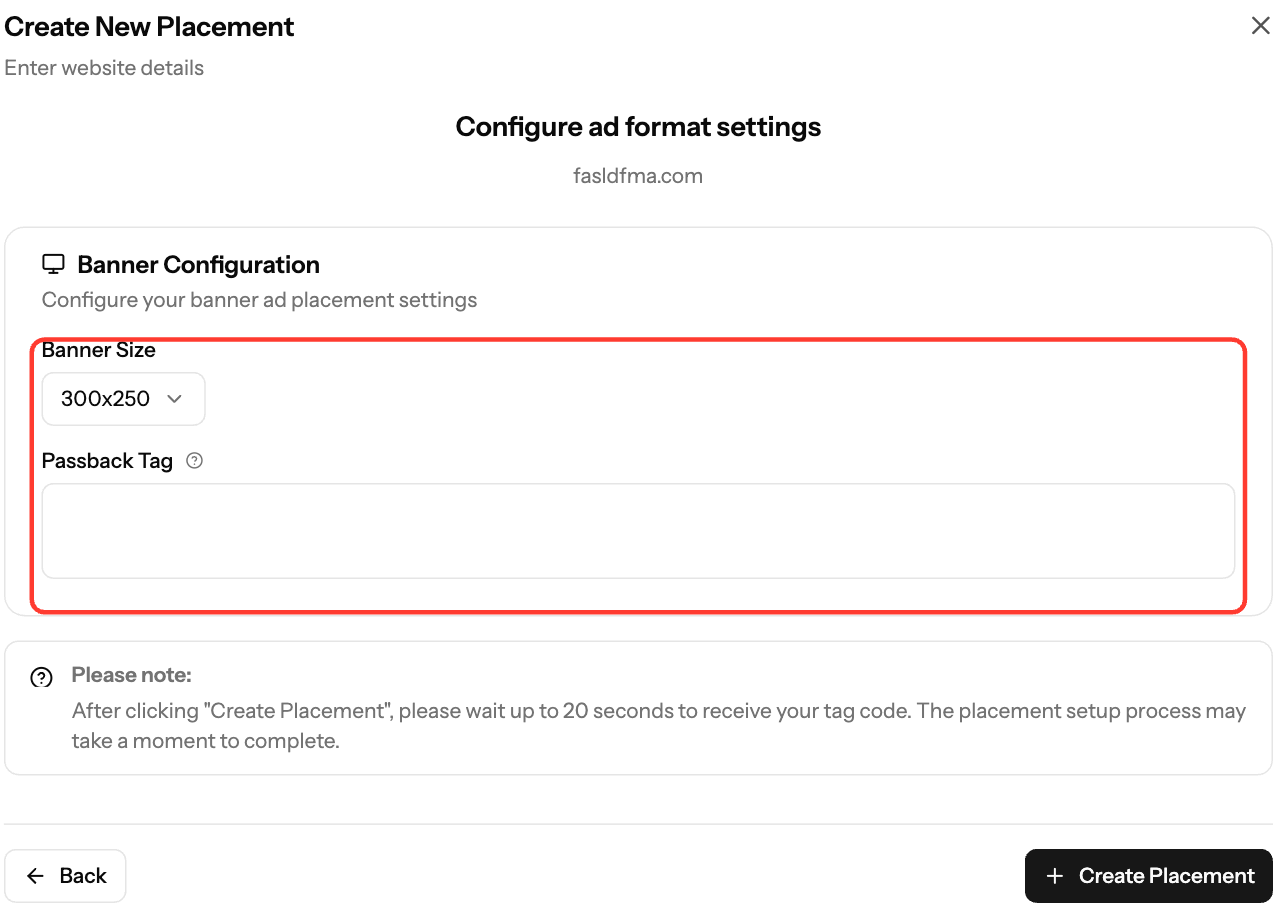
Yes, on Banner placements. When you create a Banner placement, you can paste your own HTML fallback in the optional Passback Tag field. It shows when EZmob has no ad for a request. You add it yourself, so you don't need to contact support.
Add a passback tag
- Open Sites & Placements and click Create New Placement.
- Under Select Website, choose your site and click Next.
- Select Banner and click Next.
- Choose the Banner Size.
- Paste your fallback HTML into Passback Tag. This can be an ad tag from another network you work with.
- Click Create Placement.
Good to know
- Only Banner placements have the Passback Tag field. Other formats don't.
- If you leave the field empty, EZmob uses its own default fallback for the banner size you chose.
- Use a fallback tag that fits the same Banner Size.
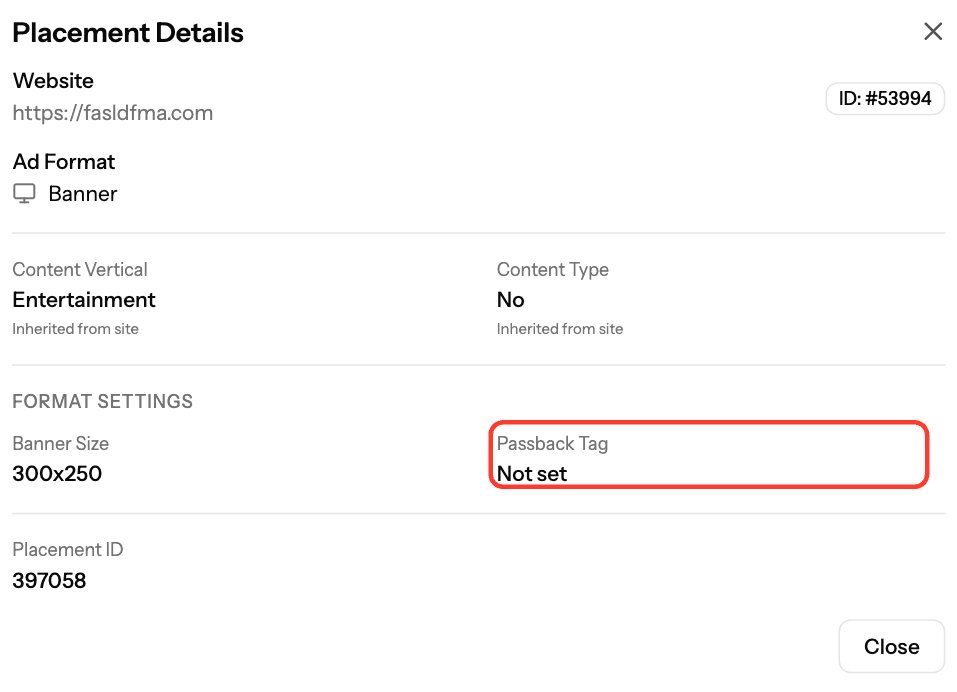
- To see whether a placement has a passback, open Placement Details. Passback Tag shows Yes or Not set.
- You can't edit the passback after you create the placement. To change it, create a new Banner placement.
Screenshots
Related articles
- How to Create a Placement and Obtain Your Ad Tag
- How to check your ad code (with examples)
- Troubleshooting Ads Not Showing on Your Site
- Why is my revenue low or zero?
Updated on: 01/10/2026
Thank you!