
How to blacklist/whitelist SubIDs?
Manage SubIDs (traffic sources) in the campaign editor under SubID. Choose Blocklist mode to block specific SubIDs, or Whitelist mode to buy only from the SubIDs you list. You can also set a bid adjustment per SubID.
Open SubID Management
- Go to Campaigns and click Edit Campaign on the campaign.
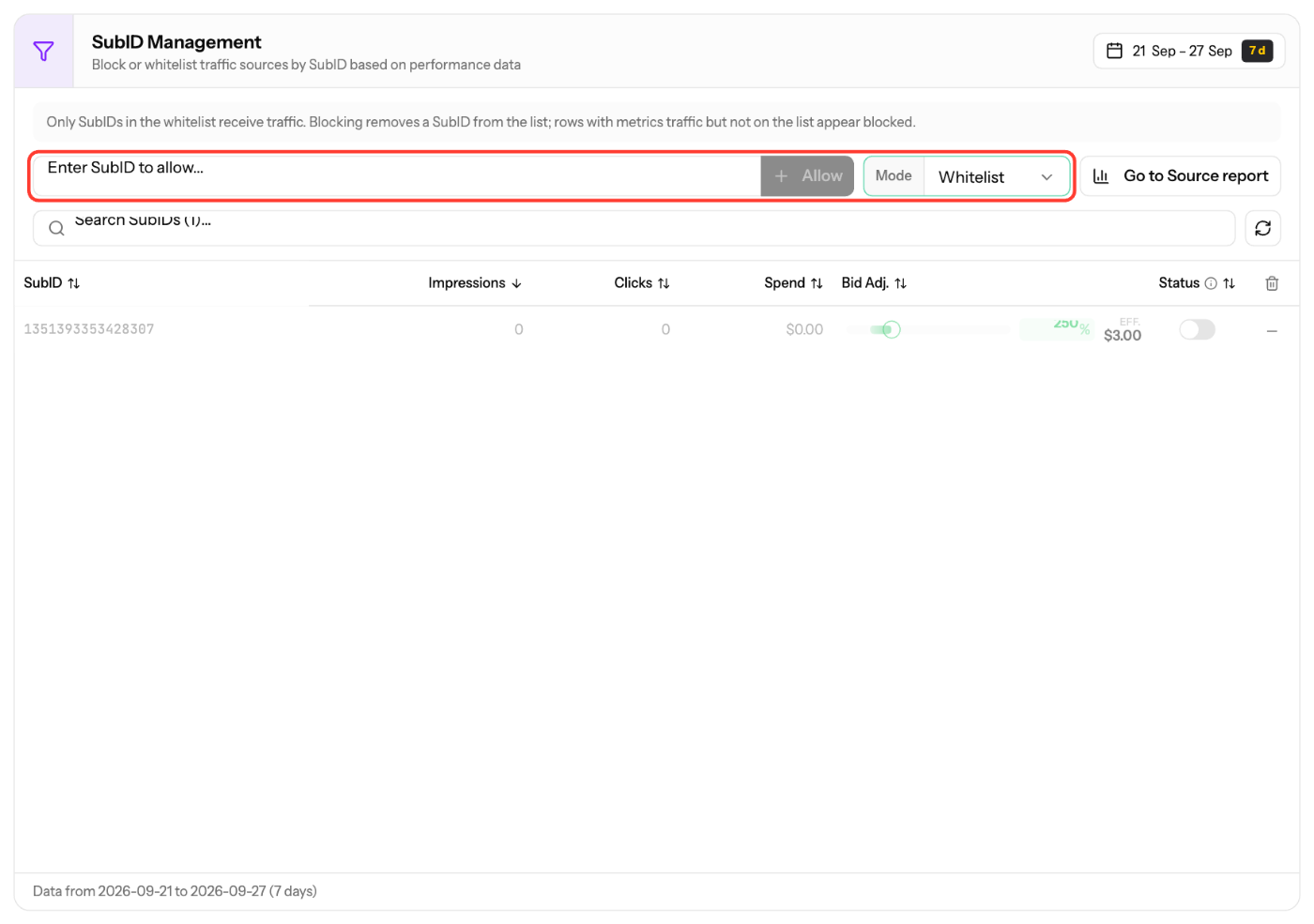
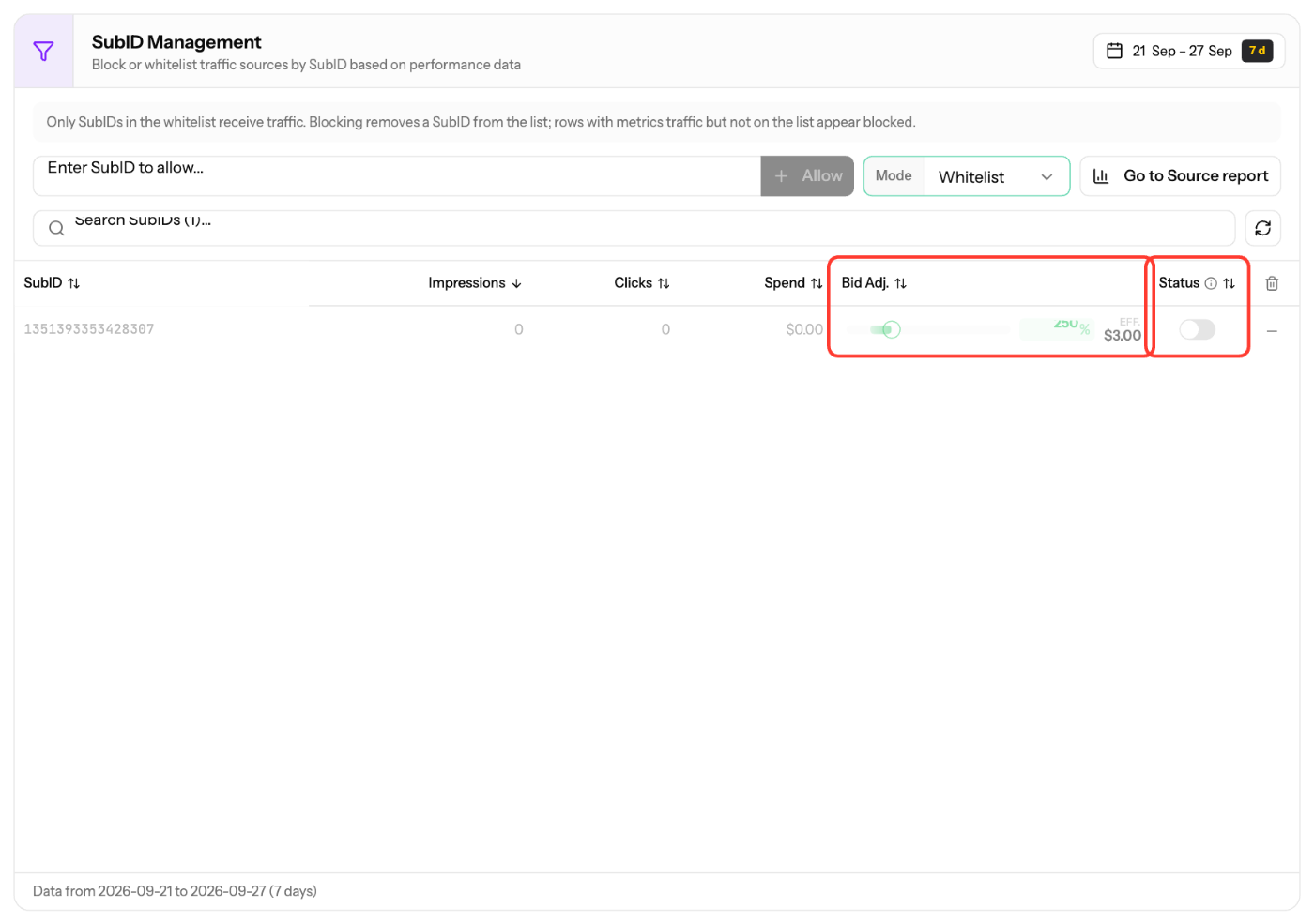
- Open the SubID step. The SubID Management table lists each SubID with Impressions, Clicks, Spend, Bid Adj. and Status for the selected period.
- To analyse sources in more detail, click Go to Source report.
Block SubIDs
- Set Mode to Blocklist.
- Enter one or more SubIDs and click Add to Blocklist, or turn off the Status switch on a row.
- To unblock, turn the row's Status switch back on.
Whitelist SubIDs
- Set Mode to Whitelist. Only SubIDs on the list receive traffic.
- Enter the SubIDs and click Allow.
- Use the Status switch to turn traffic for a SubID off or on (its bid adjustment is kept), or Remove to take it off the list.
Adjust the bid per SubID
- Drag or type the Bid Adj. value. 100% is your base bid; 150% pays half again as much for that SubID.
- Changes save automatically.
Rules
- You can't switch between Whitelist and Blocklist while the list has SubIDs. Remove all SubIDs from the list first.
- SubIDs may contain only letters, numbers, underscores and hyphens.
- If the mode is locked on your campaign, contact your account manager.
Screenshots
Further reading on the EZmob blog
Related articles
- Optimization Guide for Advertisers
- Advertiser Reports Guide
- How to add domain targeting to a campaign?
Updated on: 15/10/2026
Thank you!