
Push Notifications Campaign Creation Guide
Push Notifications campaigns show your ad as a browser notification to users who subscribed to notifications from a website. They are billed per click (CPC), with a minimum bid from $0.003 to $0.01 depending on the country tier.
Format at a glance
Pricing model | CPC (you pay per click) |
Minimum bid | Tier 1: $0.01 · Tier 2: $0.005 · Tier 3: $0.003 |
Creatives | 1–5 per campaign |
Required per creative | Title, Icon, Destination URL |
If you target countries from more than one tier, the minimum of the highest tier applies. For example, any Tier 1 country means the Tier 1 minimum.
Steps
- In the sidebar, click Campaigns, then Create Campaign.
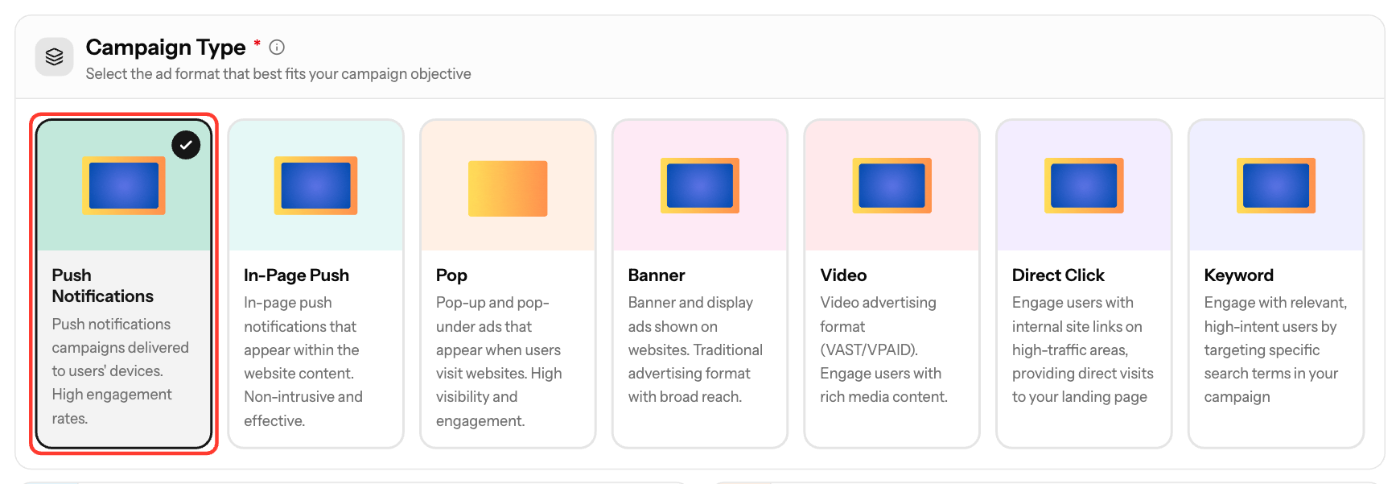
- In Basic Info, select Push Notifications under Campaign Type. You can't change the type after the campaign is created.
- Enter a Campaign Name (3–200 characters) and select an Ad Vertical. Description, Schedule and Campaign Goals are optional.
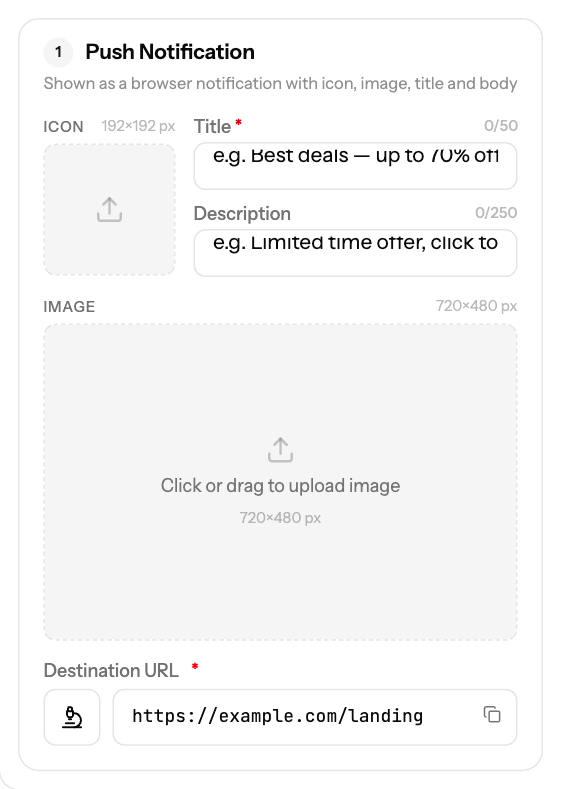
- Under Creatives, fill in each notification (see the table below). Click Add creative to add more, up to 5.
- Click Next. In Targeting, choose countries, devices, schedule and lists, or leave them empty to run broadly.
- Click Next. In Budget & Launch, set your Bid and limits (see below).
- Check the review summary and click Create Campaign.
Creative requirements
Field | Required | Spec |
|---|---|---|
Title | Yes | Up to 50 characters |
Icon | Yes | Square, 192 × 192 px |
Destination URL | Yes | Must start with http:// or https://; tracking macros allowed |
Description | No | Up to 90 characters |
Image | No | 720 × 480 px |
Images must be JPG, PNG, WEBP, GIF or BMP, max 1 MB each.
Budget & Launch settings
Field | Rule |
|---|---|
Bid | At or above the tier minimum. The wizard suggests Min, Avg and Rec bids |
Total Budget | Optional. At least $50, or No limit |
Daily Cap | Optional. At least $10; resets at midnight UTC |
Budget Type | ASAP or Evenly |
Frequency Cap | Optional. 1–100 impressions per unique IP in 24 hours |
New creatives are reviewed before they serve traffic.
Screenshots
Further reading on the EZmob blog
Related articles
- Campaign Creation: The Complete Guide
- In-Page Push Notification Campaign Creation Guide
- Ad Policy for EZmob campaigns
- How high or low should I bid?
- How long does it take for campaign approval?
Updated on: 15/10/2026
Thank you!