
Pop Campaign Creation Guide
Pop campaigns open your landing page directly as a pop-up or pop-under when users visit publisher sites. They are billed per 1,000 impressions (CPM), with a minimum bid from $0.20 to $0.50 depending on the country tier.
Format at a glance
Pricing model | CPM (you pay per 1,000 impressions) |
Minimum bid | Tier 1: $0.50 · Tier 2: $0.30 · Tier 3: $0.20 |
Creatives | 1–5 per campaign |
Required per creative | Destination URL only |
If you target countries from more than one tier, the minimum of the highest tier applies. For example, any Tier 1 country means the Tier 1 minimum.
Steps
- In the sidebar, click Campaigns, then Create Campaign.
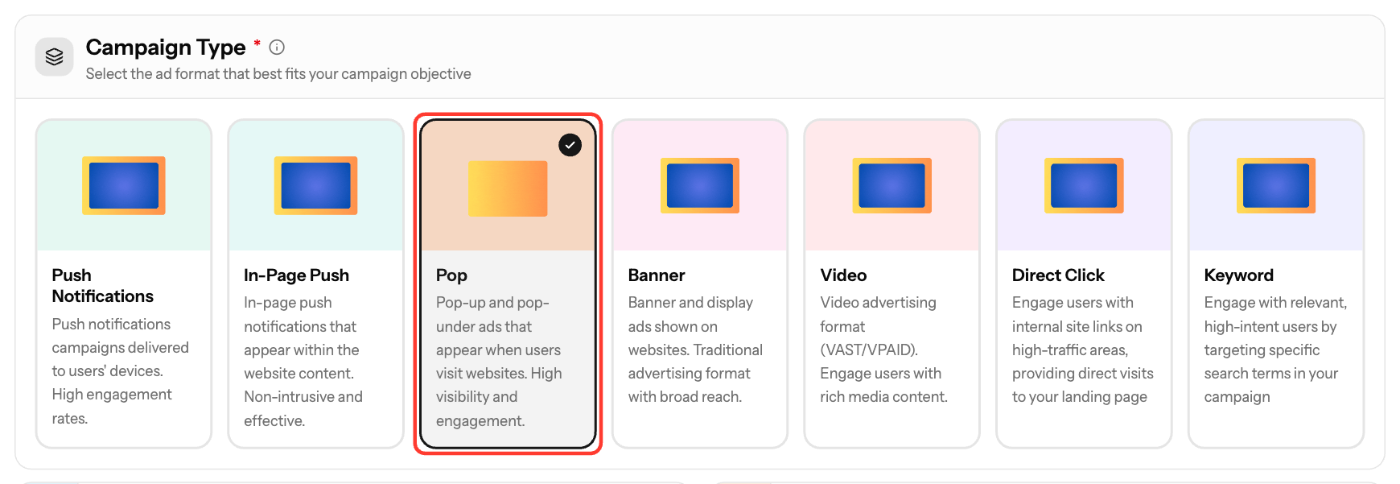
- In Basic Info, select Pop under Campaign Type. You can't change the type after the campaign is created.
- Enter a Campaign Name (3–200 characters) and select an Ad Vertical. Description, Schedule and Campaign Goals are optional.
- Under Creatives, enter the Destination URL of your landing page. Click Add creative to add more URLs, up to 5.
- Click Next. In Targeting, choose countries, devices, schedule and lists, or leave them empty to run broadly.
- Click Next. In Budget & Launch, set your Bid and limits (see below).
- Check the review summary and click Create Campaign.
Creative requirements
Pop ads have no image or text. The user lands directly on your page, and the creative title is generated for you.
Field | Required | Spec |
|---|---|---|
Destination URL | Yes | Must start with http:// or https://; tracking macros allowed |
Your landing page is the ad, so make sure it loads fast and works on the devices you target.
Budget & Launch settings
Field | Rule |
|---|---|
Bid | At or above the tier minimum. The wizard suggests Min, Avg and Rec bids |
Total Budget | Optional. At least $50, or No limit |
Daily Cap | Optional. At least $10; resets at midnight UTC |
Budget Type | ASAP or Evenly |
Frequency Cap | Optional. 1–100 impressions per unique IP in 24 hours |
New creatives are reviewed before they serve traffic.
Screenshots

Further reading on the EZmob blog
Related articles
- Campaign Creation: The Complete Guide
- How high or low should I bid?
- How long does it take for campaign approval?
- How to Track Conversions with EZmob's Postback
- Tracking Tokens and Parameters Explained
Updated on: 15/10/2026
Thank you!