
How to set up Video (outstream) ads
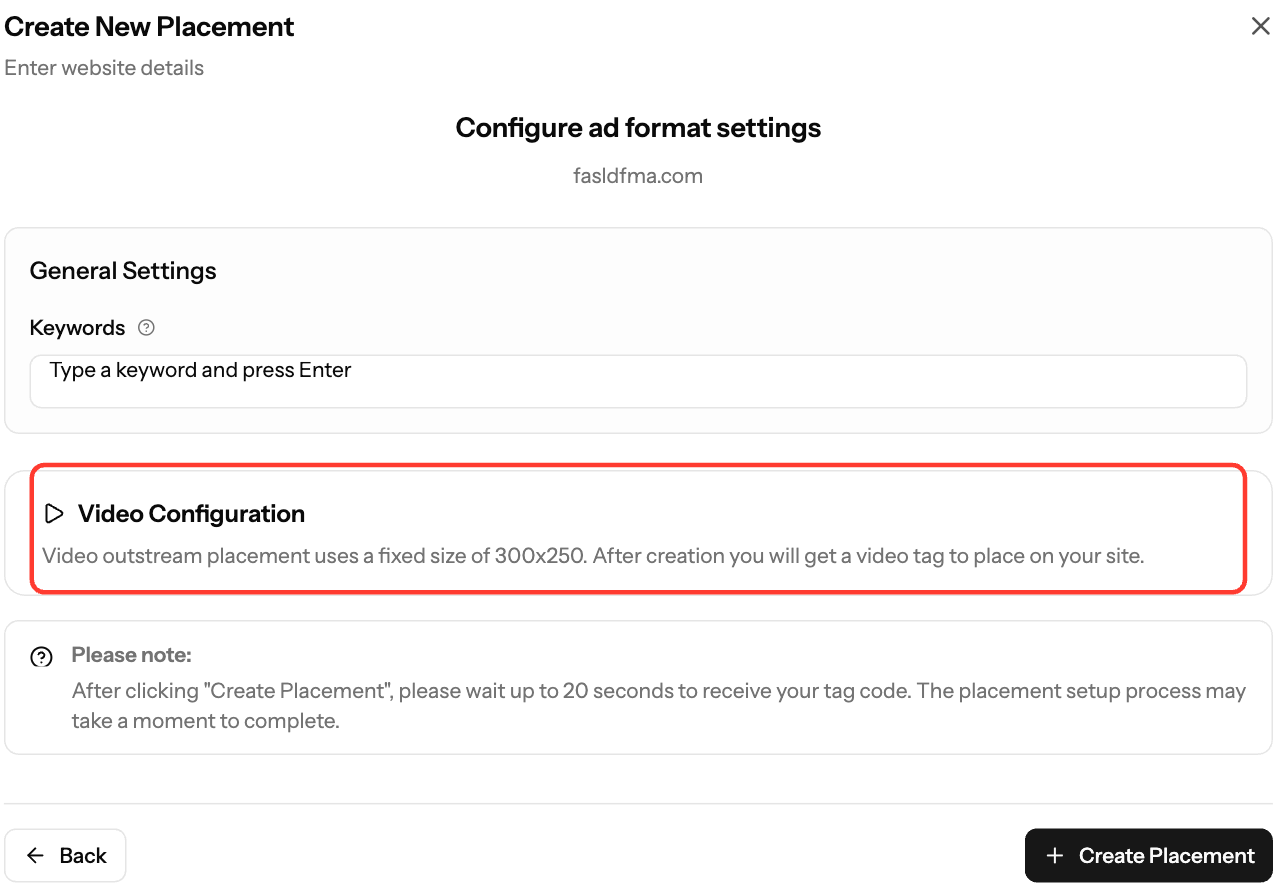
Video placements show an outstream video ad in a fixed 300x250 player. Create the placement in Sites & Placements, then copy the tag and paste it inside your page's <body>, where the video should appear.
Create a Video placement
- In the sidebar, open Sites & Placements.
- Click Create New Placement.
- Under Select Website, choose your site and click Next. The site's vertical and content type are applied automatically.
- Select Video and click Next. There is no size to choose: the player is always 300x250.
- Click Create Placement. Your tag can take up to 20 seconds to appear.
Copy the tag
- On the Your Placements tab, find the Video placement.
- In Actions, click the code icon (View Script).
- Click Copy Script.
- Paste the tag inside the
<body>section of your page, where the video should appear, for example in the content or the sidebar. Don't put it in the<head>: the player may not display there and can cause layout issues.
What the tag contains
- Prebid.js from
https://docdn.ezmob.com/prebid.js - An outstream video ad unit (300x250) that bids through
cpm.ezmob.com - The outstream renderer
https://docdn.ezmob.com/outstream_pb.js, which shows the player in floating mode - A
<div id="container-1"></div>where the player loads
Tips
- Don't edit the tag. The script expects the div ID
container-1. - For a second video unit on the same page, create another Video placement and give its div and its
code:value a different ID. - Place the player where it has room and doesn't cover your navigation or text.
Screenshots
- Screenshot: Placements tab, Video placement code view with Copy Script highlighted
Related articles
- How to Create a Placement and Obtain Your Ad Tag
- How to check your ad code (with examples)
- Troubleshooting Ads Not Showing on Your Site
- ads.txt for Publishers
Updated on: 11/10/2026
Thank you!