
Understanding Publisher Revenue Reports
The Reports page shows your earnings and traffic by day, site, placement, operating system and country. You can filter it by date and website and export it as a CSV file.
Open your reports
- In the sidebar, click Reports.
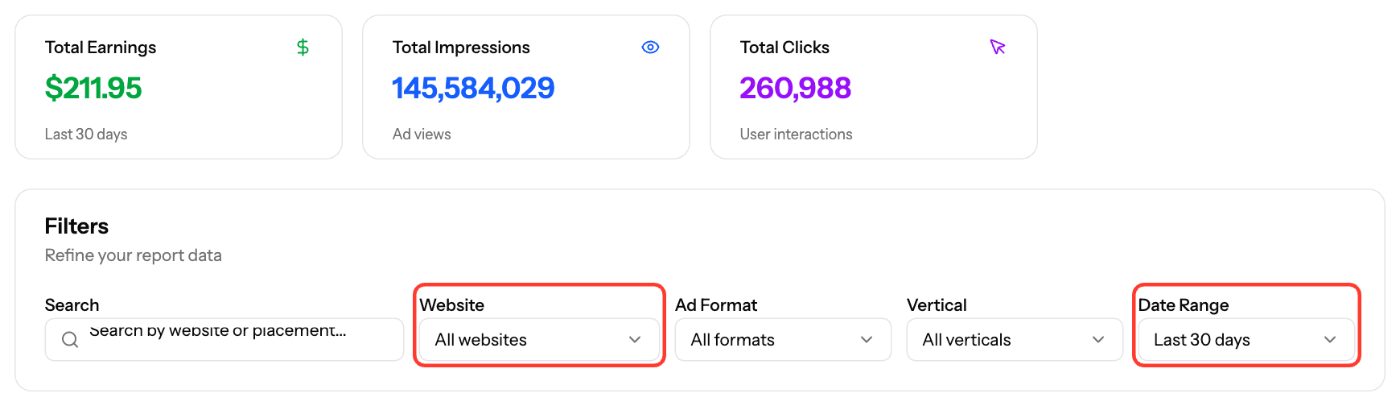
- Choose a Date Range: Today, Yesterday, This week, Last week, This month, Last month, This quarter, Last quarter, Year to date or Custom range…
- Optionally, pick one site under Website.
- Click Apply.
The cards at the top show Total Earnings, Total Impressions and Total Clicks for the period you selected.
Report tabs
Tab | Use it to |
|---|---|
Daily Report | Follow trends day by day |
Site Report | Compare your websites |
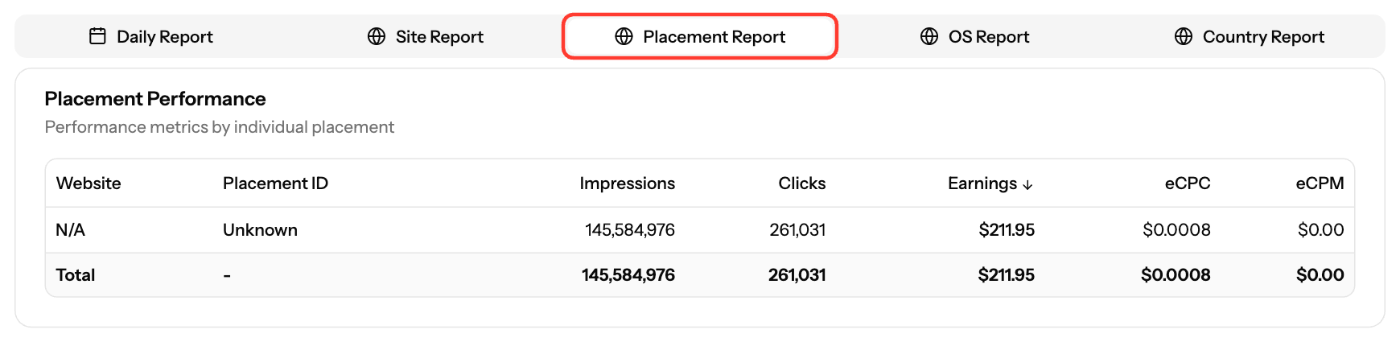
Placement Report | See which placement earns most. Filter by Ad Format and Vertical, or search |
OS Report | Compare operating systems |
Country Report | Compare countries |
OS and Country reports show gross numbers and are not billable. Use the Daily, Site or Placement reports for the earnings you're paid on.
Metrics
- Impressions: ads shown
- Clicks: clicks on your ads
- Earnings: your revenue for the row
- eCPM: earnings per 1,000 impressions
- eCPC: earnings per click
Click any column header to sort by it.
Export
Click Export Report to download a CSV file of the current view and filters.
Reporting days follow Pacific Time, and recent days can still change. See When are publisher reports updated?
Screenshots
Related articles
- When are publisher reports updated?
- Why is my revenue low or zero?
- Understanding Publisher Dashboard Widgets
- How to Request Payment
Updated on: 01/10/2026
Thank you!