
How to Request Payment
Request a payout from Earnings once at least $250 of your earnings are available. Earnings become available 15 days after the day they were earned.
Before you start
- Minimum payout: $250. Both your available balance and the amount you request must be at least $250.
- 15-day hold: only earnings from 15 or more days ago count toward your available balance, minus anything you already requested.
- Payment method: save at least one under Settings → Payment Methods. See Payment methods for publishers for the methods and fees.
Request a payment
- In the sidebar, click Earnings.
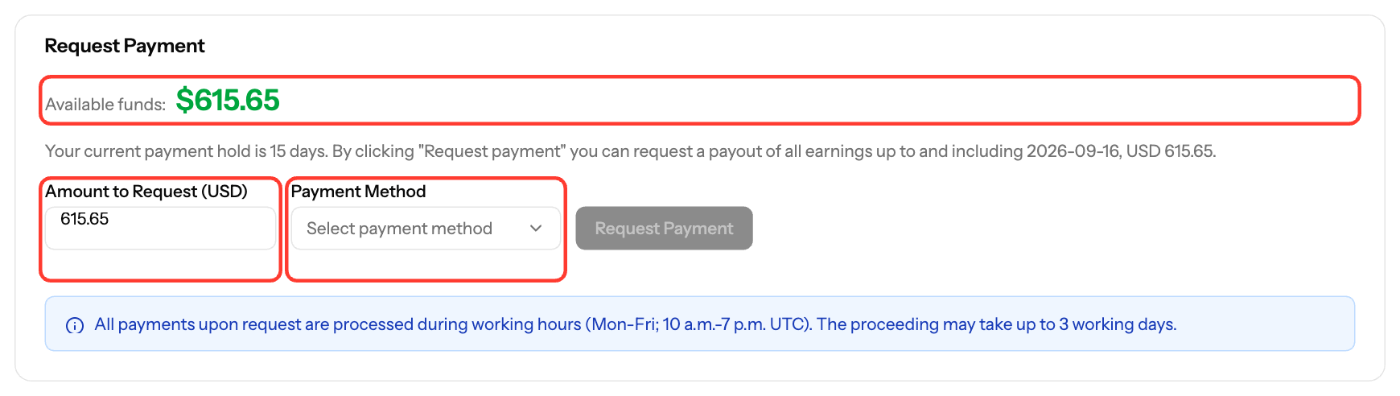
- In the Request Payment card, check Available funds.
- Enter the amount in Amount to Request (USD). It can be anything from $250 up to your available funds.
- Under Payment Method, select one of your saved methods.
- Click Request Payment, then Confirm Request. A request can't be undone.
If the button is blocked, the page shows why: the minimum isn't reached, the amount is higher than your available funds, or no payment method is saved.
After you request
- Payments are processed during working hours (Mon–Fri, 10 a.m.–7 p.m. UTC). Processing can take up to 3 working days.
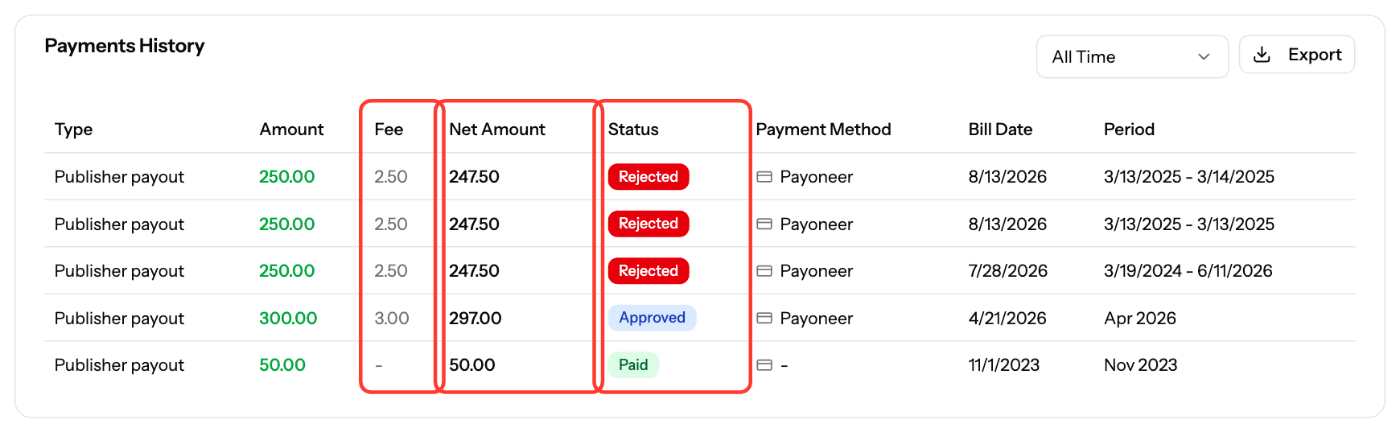
- Track the request in Payments History. The table shows Amount, Fee, Net Amount and Status. The fee for your payment method is deducted from the amount.
- Statuses you may see: Pending, In Queue, Approved, Waiting Payment, Paid and Rejected.
- When your request is approved, EZmob generates the invoice for you, so you don't need to upload one. You get emails when the payment is approved and when it's paid.
Payment terms
Each publisher account has payment terms: Weekly, Net-0, Net-30 or Net-60. They depend on your agreement with EZmob. Contact support@ezmob.com with questions about your terms.
Screenshots
Related articles
- Payment methods for publishers
- How to upload an invoice for payment?
- Updating my Publisher Profile
- Understanding Publisher Revenue Reports
Updated on: 01/10/2026
Thank you!