
Connecting Social Accounts for Quick Login
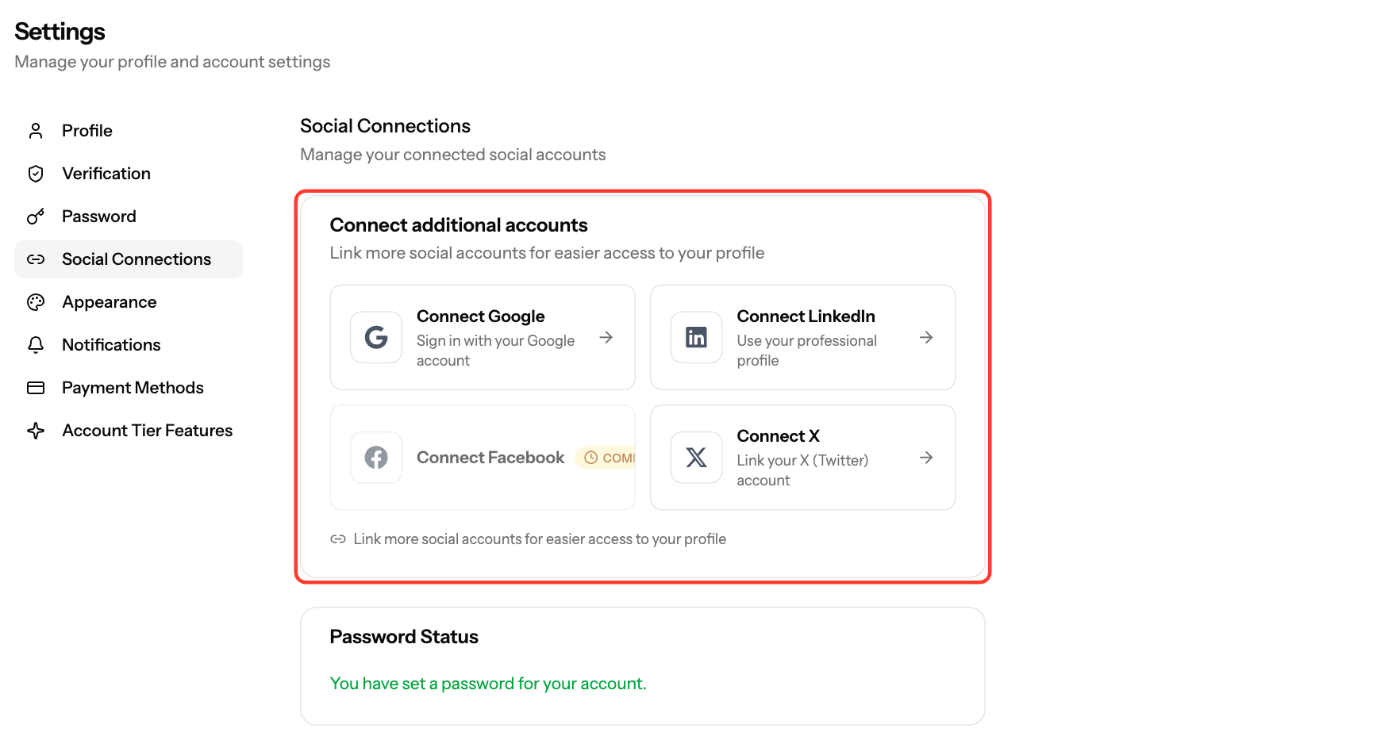
Link a Google, LinkedIn or X account under Settings → Social Connections (https://dashboard.ezmob.com/settings/social) to log in with one click. Facebook is coming soon.
Connect an account
- Click your profile at the top right and select Settings.
- Open Social Connections.
- Under Connect additional accounts, click Connect Google, Connect LinkedIn or Connect X.
- Sign in to that account and approve access. You return to EZmob with a success message.
- The account now appears under Current connections with its Connected on date.
To log in next time, click Continue with Google, Continue with LinkedIn or Continue with X on the login page.
Unlink an account
- Go to Settings → Social Connections.
- Click Unlink next to the account and confirm with Confirm Unlink.
If the social account is your only way to log in, you can't unlink it. Set a password first under Settings → Password (Set Password).
Good to know
- X only works for accounts that already have X linked. You can't sign up with X.
- Each social account can be linked to only one EZmob account.
Screenshots
Related articles
- What should I do if I can't log in or forgot my password?
- Account Registration
- Understanding Your Onboarding Checklist
Updated on: 27/09/2026
Thank you!