> ## Knowledge Base Index
> Fetch the complete knowledge base index at: https://helpdesk.ezmob.com/sitemap.xml
> Use this file to discover available pages before exploring further.
> Pure-Markdown content can be obtained by appending a '.md' suffix to the content URLs listed in the sitemap (without the trailing slash).
# Track conversions with EZmob Pixel
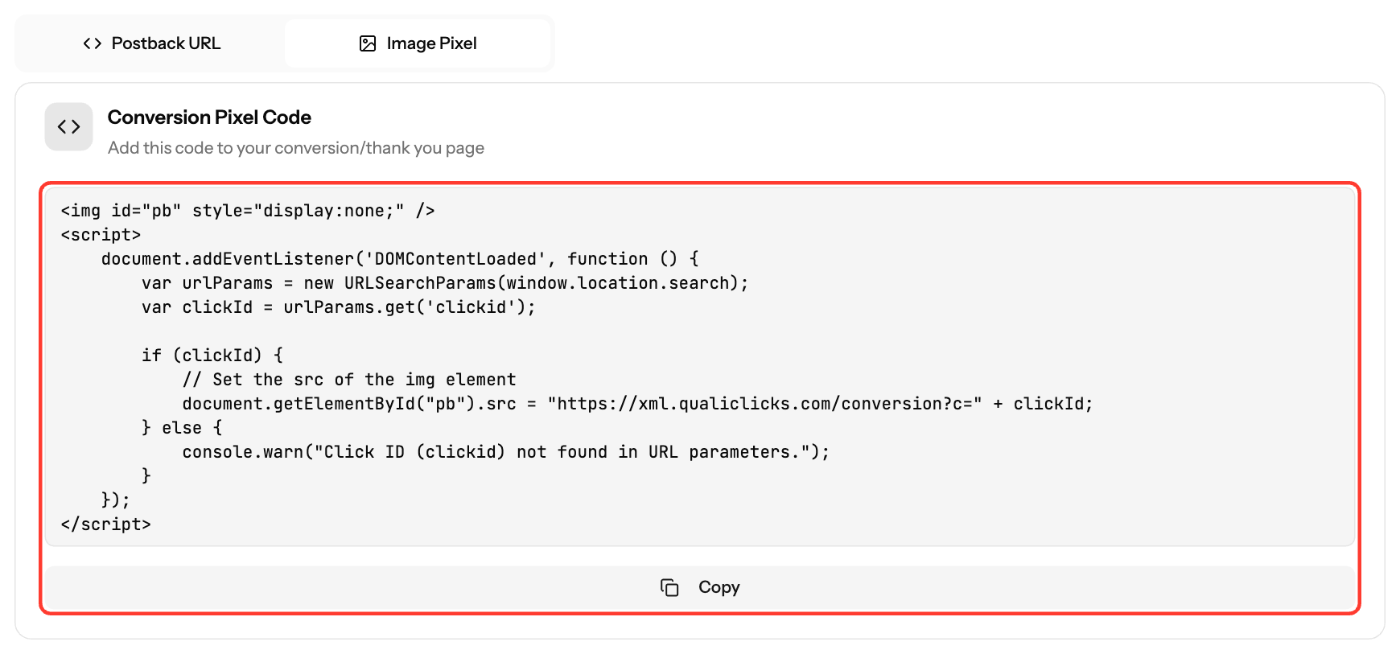
If you can't send a server postback, add the EZmob image pixel to the page that confirms a conversion (for example, a thank-you page). Copy it from **Postbacks** → **Image Pixel**.
## Steps
1. In the sidebar, click **Postbacks** and open the **Image Pixel** tab.
2. Add `clickid={conversion}` to your campaign's **Destination URL**, for example `https://yoursite.com/?clickid={conversion}`. The parameter name must be `clickid`, because the pixel reads it from the page URL.
3. Paste the pixel code inside the `` of the page that loads only after a successful conversion.
4. Make sure that page's URL still contains `clickid`. If the conversion happens on a later page, pass the `clickid` parameter along to it.
5. Complete a test conversion from a live ad click. In your browser's developer tools (**Network** tab), check for a request to `xml.qualiclicks.com/conversion?c=...`.
6. Check the **Conversions** column under **Metrics**.
## Pixel code
```html
![]() ```
## Good to know
- Decide first what counts as a conversion (registration, deposit, purchase) and place the pixel only on the page that confirms it.
- Reloading the confirmation page can fire the pixel again. Use a postback if you need exactly one call per conversion.
- The pixel sends no conversion value. To report **Conv. Value**, use the postback URL.
## Screenshots
## Related articles
- [How to Track Conversions with EZmob's Postback](https://helpdesk.ezmob.com/en/article/how-to-track-conversions-with-ezmobs-postback-4z7hva/)
- [Tracking Tokens and Parameters Explained](https://helpdesk.ezmob.com/en/article/tracking-tokens-and-parameters-explained-r5m1yu/)
- [Troubleshooting Conversion Tracking Issues](https://helpdesk.ezmob.com/en/article/troubleshooting-conversion-tracking-issues-15rhk9q/)
```
## Good to know
- Decide first what counts as a conversion (registration, deposit, purchase) and place the pixel only on the page that confirms it.
- Reloading the confirmation page can fire the pixel again. Use a postback if you need exactly one call per conversion.
- The pixel sends no conversion value. To report **Conv. Value**, use the postback URL.
## Screenshots

## Related articles
- [How to Track Conversions with EZmob's Postback](https://helpdesk.ezmob.com/en/article/how-to-track-conversions-with-ezmobs-postback-4z7hva/)
- [Tracking Tokens and Parameters Explained](https://helpdesk.ezmob.com/en/article/tracking-tokens-and-parameters-explained-r5m1yu/)
- [Troubleshooting Conversion Tracking Issues](https://helpdesk.ezmob.com/en/article/troubleshooting-conversion-tracking-issues-15rhk9q/)