> ## Knowledge Base Index
> Fetch the complete knowledge base index at: https://helpdesk.ezmob.com/sitemap.xml
> Use this file to discover available pages before exploring further.
> Pure-Markdown content can be obtained by appending a '.md' suffix to the content URLs listed in the sitemap (without the trailing slash).
# How to set up Pop (pop-up and pop-under) ads
A Pop placement opens an advertiser page in a new window or tab when a visitor clicks on your site. You create it in **Sites & Placements** and choose which clicks trigger it and how often the same visitor sees it.
## Create a Pop placement
1. Open **Sites & Placements** and click **Create New Placement**.
2. Under **Select Website**, choose your site and click **Next**.
3. Select **Pop** and click **Next**.
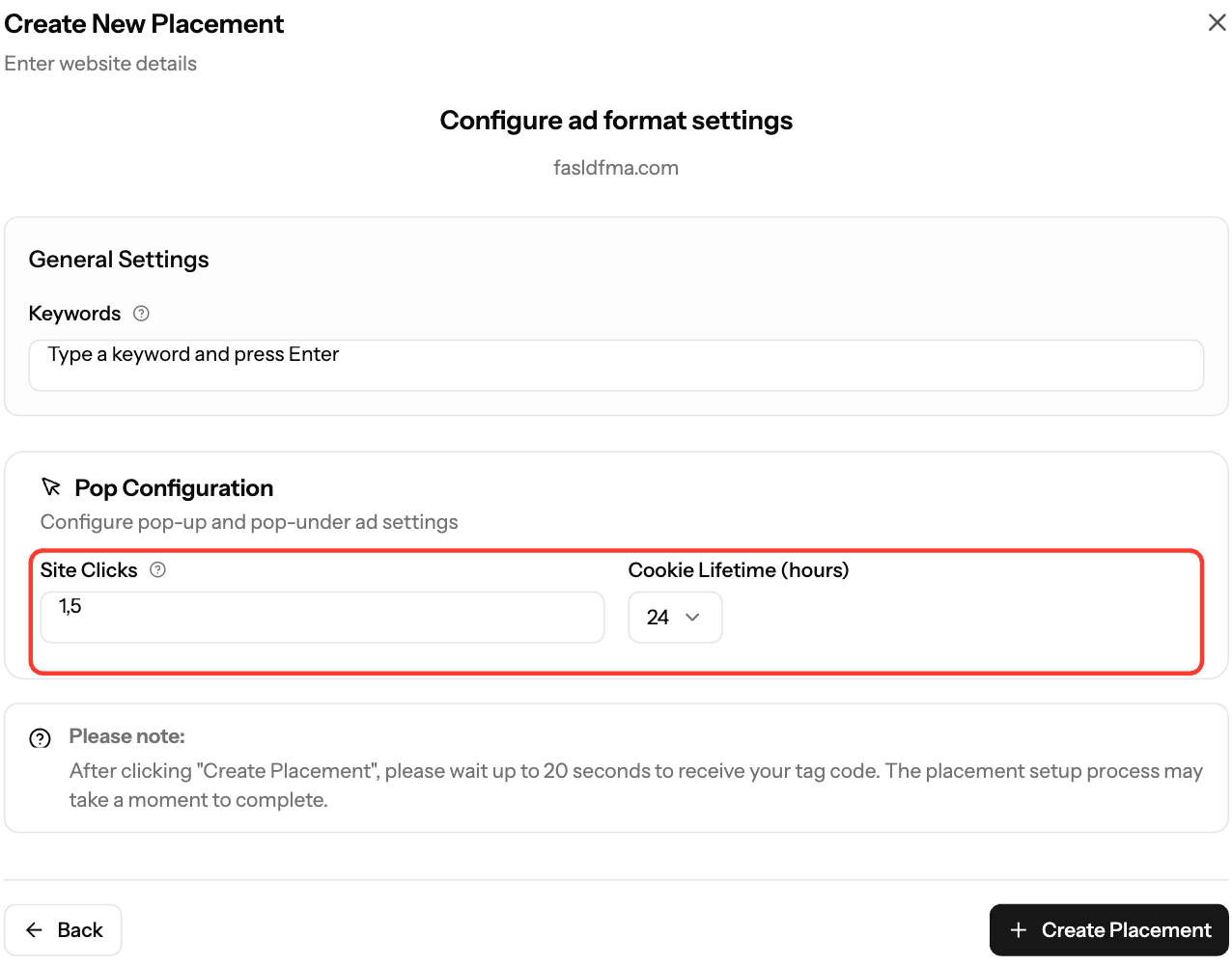
4. In **Pop Configuration**, set:
- **Site Clicks**: which clicks open the pop. The default `1,5` opens it on the 1st and 5th click.
- **Cookie Lifetime (hours)**: 1, 6, 12 or 24 (default 24). This controls how often the same visitor gets pops.
- **Keywords** (optional): up to 10 keywords about your content. Press Enter after each one.
5. Click **Create Placement**. Your tag can take up to 20 seconds to appear.
## Install the tag
1. On the **Your Placements** tab, click the code icon (**View Script**) on the placement.
2. Under **Data Center**, choose **US East (New York)** or **EU (Amsterdam)**, whichever is closer to most of your visitors.
3. Click **Copy Script**.
4. Paste the tag in the `` section of every page where pops should run.
Your tag looks like this, with your own values filled in:
```html
```
- `h` is the ad server (`xml-eu.qualiclicks.com` when you choose EU).
- `ps` is **Site Clicks**, `q` is **Keywords** and `t` is **Cookie Lifetime** in hours.
- Always copy your own tag from the dashboard. Don't use the example above.
## Common questions
- **Does the tag work on HTTPS sites?** Yes. The script loads from a protocol-relative URL (`//static.qualiclicks.com/...`), so it works on HTTP and HTTPS.
- **Can I change the settings later?** No. **Placement Details** shows the settings but you can't edit them there. Create a new Pop placement with the settings you want.
## Screenshots
- *Screenshot: Placements tab, Pop code view with the Data Center selector and Copy Script*
## Related articles
- [How to Create a Placement and Obtain Your Ad Tag](https://helpdesk.ezmob.com/en/article/how-to-create-a-placement-and-obtain-your-ad-tag-415ybh/)
- [Decrease latency with EU Ad Server Support](https://helpdesk.ezmob.com/en/article/decrease-latency-with-eu-ad-server-support-1setmme/)
- [How to check your ad code (with examples)](https://helpdesk.ezmob.com/en/article/how-to-check-my-ad-codes-examples-1ykpp7k/)
- [Which ad formats can publishers monetize with?](https://helpdesk.ezmob.com/en/article/which-ad-formats-can-publishers-monetize-with-1it03t4/)
- [Troubleshooting Ads Not Showing on Your Site](https://helpdesk.ezmob.com/en/article/troubleshooting-ads-not-showing-on-your-site-bu4pac/)